



How do you let children choose their own learning corner and still keep track?
In the app
This is what the choice board looks like
You open the choice board on an interactive whiteboard or tablet. On the left are the children's symbols, on the right the activities with their free places. Each child chooses where to play.
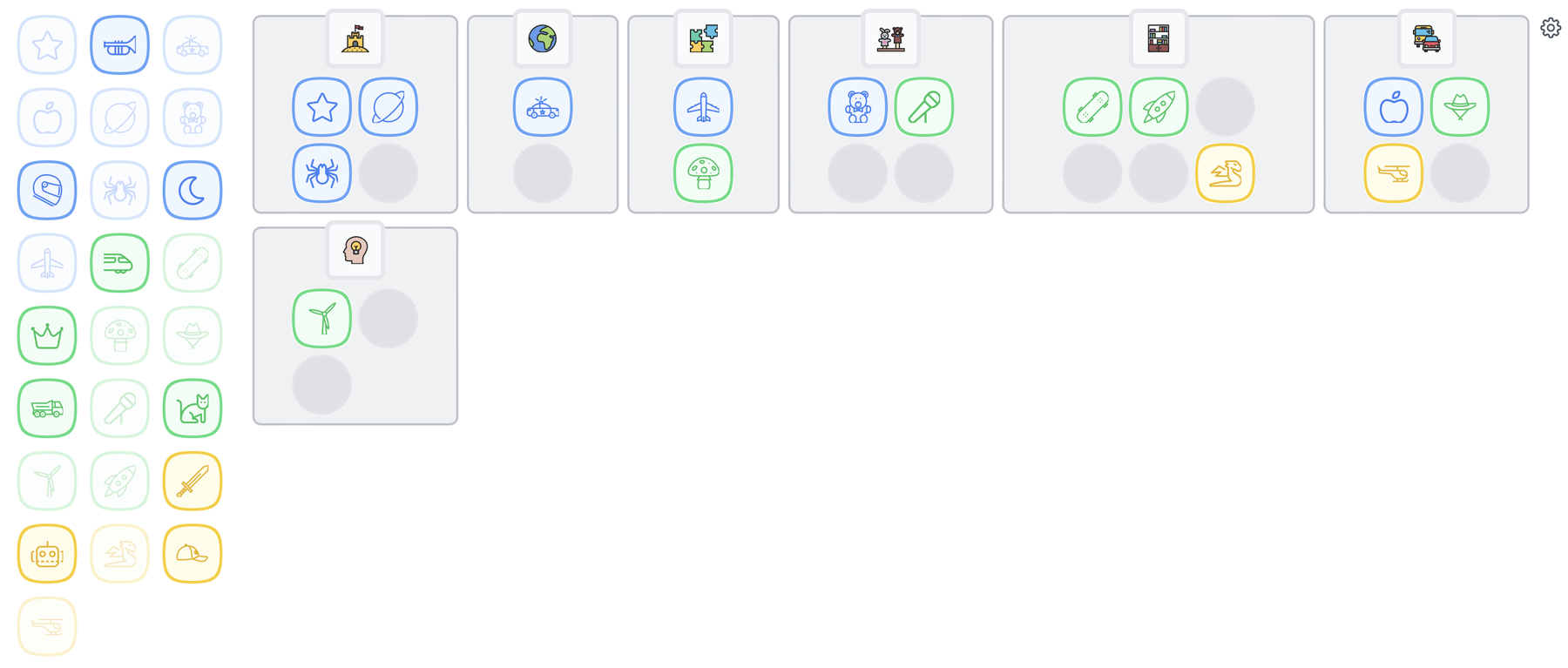
Set up the choice board: choose the learning corners, the number of places and which children can choose.
And after playing? Children look back with a smiley and a photo of their work.
Discover the reflection board and feedback →In 4 steps
How the choice board works
Step 1
Set up your activities
Set up your choice activities and pick a recognisable icon from the library for each learning corner.
More about symbols →Step 2
Children choose & give feedback
Each child chooses where to play and afterwards shows with a smiley how it went. That way they work independently, even when you're busy with a small group.
Step 3
Smart Symbols keeps track of everything
How long children choose each activity is recorded automatically. You don't need to write anything down.
Step 4
Look back together
With the reflection board you look back together at the end of the day: what did they enjoy, what was difficult, who divided their time well?
To the reflection board →What do you do with all that data? See how your class spends its time across activities, and which children often play together.

From the classroom
“We were looking for a digital choice board and discovered Smart Symbols. The more we used it, the more possibilities we found. Now we use it for pupil tracking, class observations and our support files. The whole team is enthusiastic!”
Griet Demeyere
Teacher, GBS De Zonnebloem
Symbols
Adaptable to the way your class works
Icons and symbols
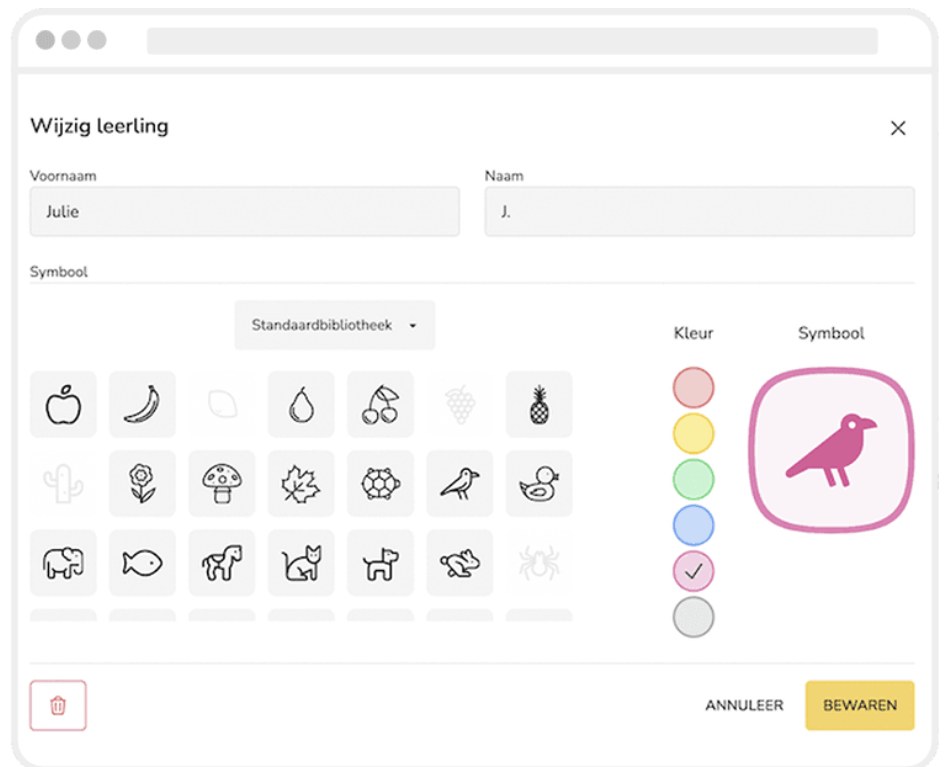
Smart Symbols has an extensive library of symbols for children and activities. Prefer your own symbols? Create a library for your class, or share one with your colleagues. You can also easily print the symbols from the overview.
Colour-coded groups
Give a child's symbol a colour as well. That way the youngest children recognise their symbol faster, or you can easily work across classes.
Symbol, name or both
Choose what appears for each child on the choice board: just the symbol, the symbol with the name, or just the name. That way the board grows with your class.
Frequently asked questions
Frequently asked questions about the choice board
Which device do you use the choice board on?
On the interactive whiteboard in the classroom or on a tablet.
Do I have to note down who plays where?
No. What children choose and how long they play somewhere is recorded automatically.
Is the choice board included in every package?
Yes, the digital choice board is included in both Lite and Essential. The reflection board is included in Essential.
Which icons can I use?
You choose icons from the library. The Essential package gives you unlimited icon libraries.
Can children use it on their own?
Yes, that is what it is made for. With recognisable icons, even young children choose their own activity.
Can't find your question?
Feel free to get in touch. We are happy to show you how the choice board works in a short demo.



Use the choice board in your own class
Test Smart Symbols for free and let your children choose their own learning corner.